
How to Use Your Healthy Homes Classroom
Signing in, finding your course, quizzes, LIVE Exam Prep and your certificate, all in one place.
Quick Start
- Sign in at the Dashboard with your email address and password.
- Click Courses in the left menu, or the course card under Continue Learning, to open your course.
- Click Start Learning (later it says Continue Learning). It opens the next item you haven’t finished.
- Answer the Student Verification in Welcome. Start Here! before Chapter 1.
- Go through each chapter in order. When you finish a reading or video, click Next. That checks it off and opens the next item. Finish with the chapter quiz.
- When every item has a green check and every quiz is passed, click Complete the Course. Your certificate then appears under Certificates.
Moving from the Old Classroom
If you started your course on our old classroom, welcome. Your course has been rebuilt with new chapters, quizzes and video, so it starts from the beginning here. To make up for that, your 180 days of access started over on the day you were moved, at no cost.
Your old progress and quiz scores are kept on file. If you need proof of work you did on the old classroom, contact us.
Already earned a certificate on the old classroom? It’s still valid, and you don’t need to do anything.
Signing In and Passwords
- Sign in at the Dashboard page with the email address you used when you enrolled. Tick Keep me signed in on your own computer.
- First time here, or forgot your password? Use Forgot Password. We’ll email you a link to set a new one. Check your spam folder if it doesn’t arrive within a few minutes.
- To change your email or password later, open the account menu (your initials, top right), then Settings.
- Use your own account only. Your certificate is issued in the name on your account.
Your Dashboard
The Dashboard is your home base. It opens when you sign in.
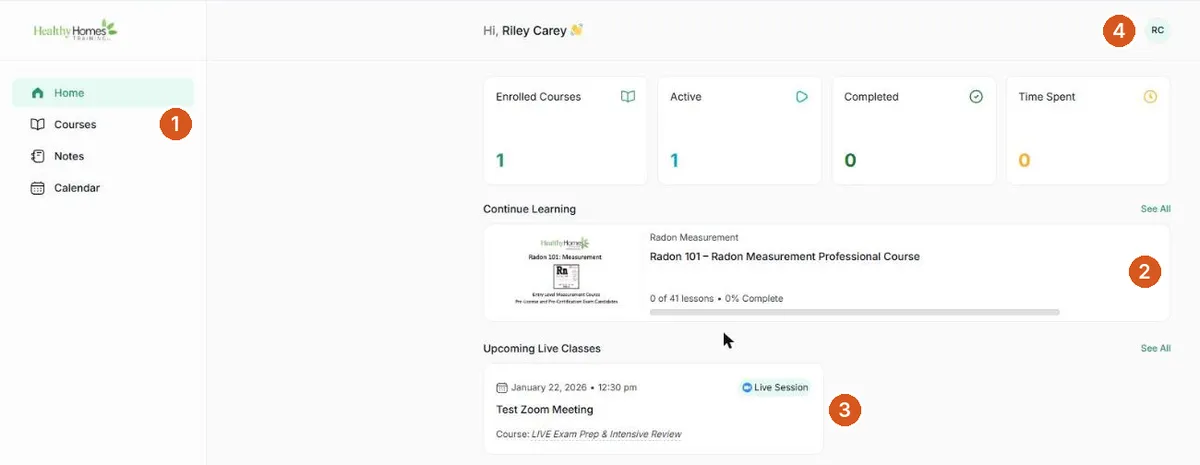
- Menu: Home, Courses, Notes and Calendar.
- Continue Learning: your course and how far along you are. Click it to jump back in.
- Upcoming Live Classes: LIVE Exam Prep sessions on Zoom.
- Account menu: click your initials for Profile, Certificates, Billing (your receipts) and Settings.
| Home | Your totals (enrolled, active, completed), Continue Learning and upcoming live classes |
|---|---|
| Courses | All your courses, sorted into Enrolled, Active and Complete |
| Notes | Notes you saved with the Take Note button in a lesson |
| Calendar | Upcoming live sessions, including LIVE Exam Prep |
Your Course Page
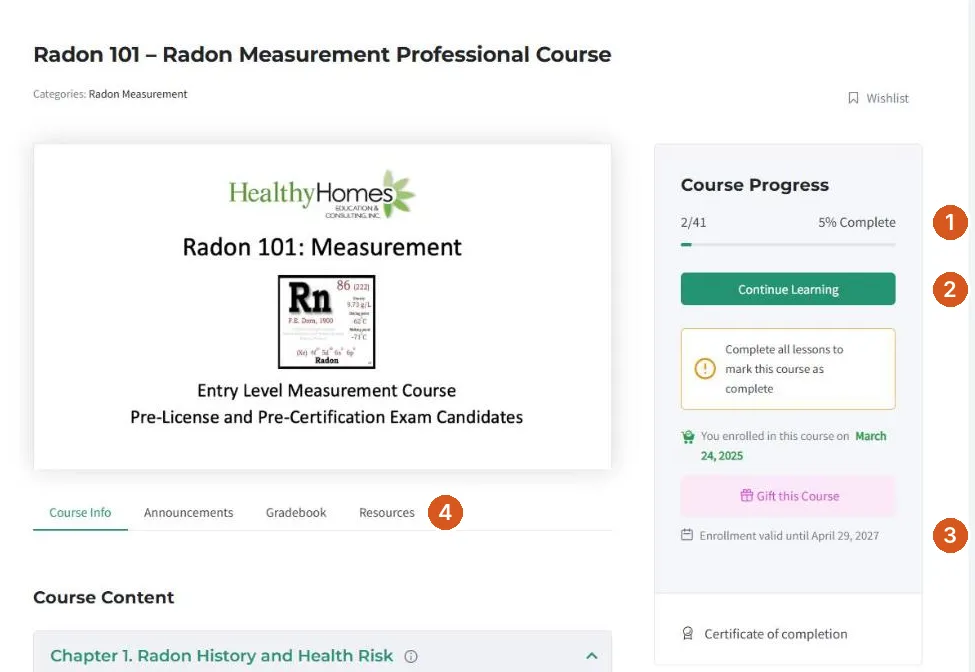
- Course Progress: items finished out of the total, and your percent complete.
- Start Learning / Continue Learning: opens the next item you haven’t finished.
- Enrollment valid until: the last day you can use the course.
- Tabs: Announcements from us, your Gradebook (quiz scores) and Resources (every course PDF in one place).
Scroll down the course page to see every chapter in Course Content. Click any item to open it.
Inside a Lesson
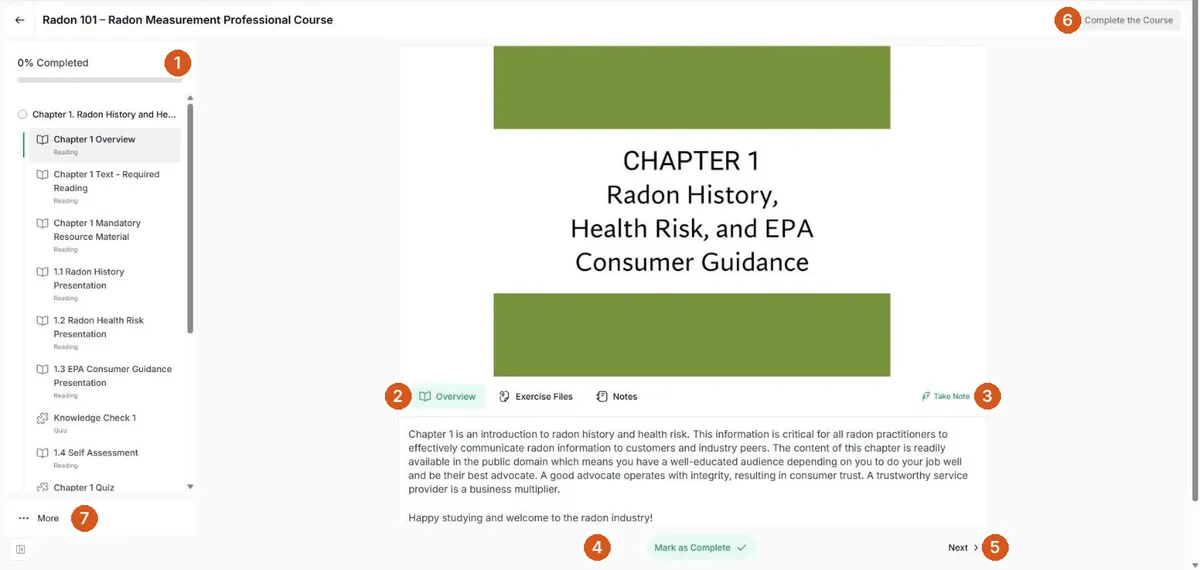
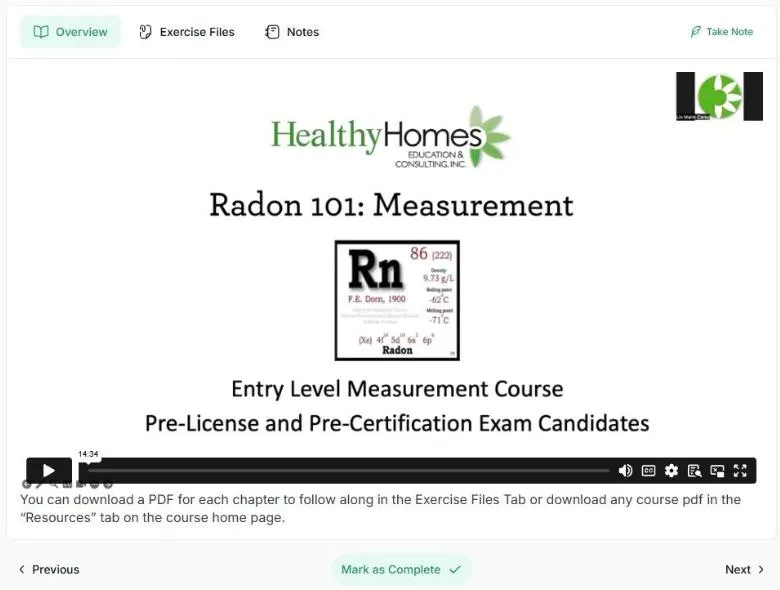
- Percent completed and the chapter list. Each item is labeled Reading or Quiz, and the one you’re on is highlighted.
- Lesson tabs: Overview (the lesson), Downloads (the files for this lesson) and Notes.
- Take Note: save a note with this lesson. Find it later under Notes.
- Mark as Complete: checks off the lesson and keeps you on it.
- Next: checks off the lesson and opens the next item. Previous goes back one item.
- Complete the Course: lights up once everything is done.
- More: Resources, Announcements, Live Classes, Gradebook, Certificate and Course Info.
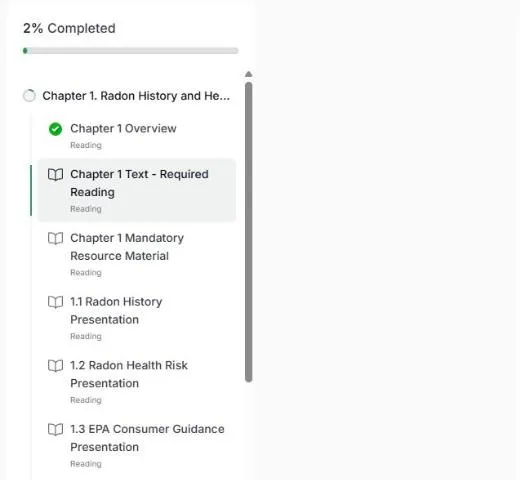
Finished a lesson? Click Next. Next marks the lesson complete, adds a green check in the sidebar, raises your percent and opens the next item. Jumping to a lesson from the sidebar doesn’t check anything off, so use Next (or Mark as Complete) when you’re done with each one.
Readings and Videos
- Readings are PDF files shown in the lesson. Resource lessons list several files, each with a Download button.
- Presentations are narrated videos inside the lesson. The player has captions (CC), a settings menu and full screen.
- Want to read along? Each chapter’s PDF is in the lesson’s Downloads tab, and every course PDF is in the Resources tab on the course page.
- To leave the lesson screen, click the back arrow at the top left.
How Your Progress Works
- Every item counts. Each reading, video and quiz is one step. Radon 101, for example, has 41.
- Green check = done. Red X = quiz not passed yet. Look for these in the lesson sidebar.
- You can jump around. Nothing is locked, so you can open any chapter at any time. Working in order is still the easiest way through.
- Finishing takes everything. Complete the Course only works once every lesson has a green check and every quiz is passed. If it won’t work, look in the sidebar for an item without a green check.
- Click Complete the Course yourself. The course doesn’t finish on its own. Your certificate is created when you click it.
- Don’t reset by accident. Your course page may offer an option to retake or reset the course. It clears your progress, so only use it if you truly want to start over.
Quizzes
| Chapter Quizzes | You need 70% to pass. You can retake a chapter quiz as many times as you need |
|---|---|
| Knowledge Checks and Worksheets | Practice items. They aren’t graded, but complete them like any other item |
| Student Verification | In Welcome. Start Here! at the top of the course. 4 questions, all must be correct, up to 10 tries |
| Final Exam | Ends each course. You need 67% to pass and get up to 3 attempts. Radon 101: 100 questions, 2 hours. Radon 401: 120 questions, 2.5 hours. Questions are drawn at random, and answers aren’t shown afterward |
Taking a Quiz
- Be ready before you open it. A quiz can start on its own a few seconds after you open it, with a short countdown.
- All the questions are on one page. Scroll down to answer each one, then click Submit Quiz at the bottom.
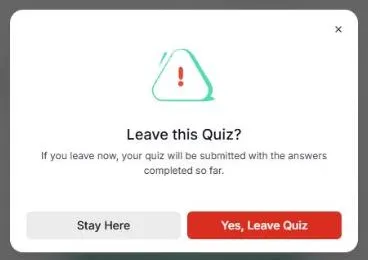
- Quit submits what you have. If you click Quit or leave the page, your quiz is submitted with the answers you’ve filled in so far, and it counts as an attempt.
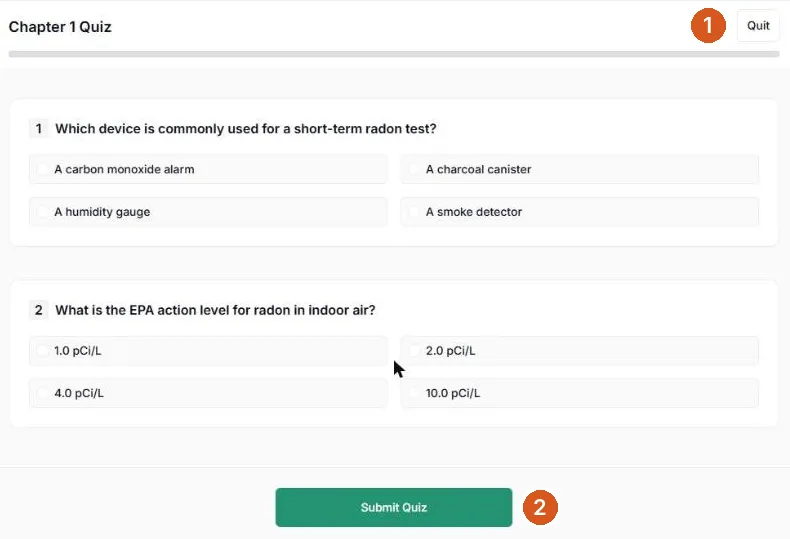
- Quit: leaves the quiz and submits the answers you’ve given so far.
- Submit Quiz: click when every question is answered.
Your Results
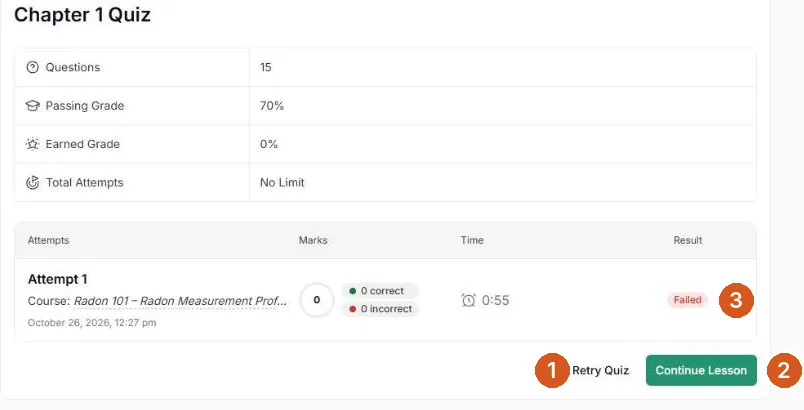
- Retry Quiz: take it again. There’s no limit on chapter quizzes.
- Continue Lesson: go on to the next item.
- Result: Passed or Failed for each attempt, with your marks and time.
- Your best score counts. If you retake a quiz, your highest grade is the one that’s kept.
- Your scores for every quiz are also on the Gradebook tab of the course page.
Your Access
You have 180 days from enrollment to finish, plus a 5-day grace period. That’s plenty of time at an hour or two a week. If you need more time, contact us before your access ends and ask about an extension.
LIVE Exam Prep
LIVE Exam Prep is a monthly review session on Zoom to help you get ready for your certification exam.
- Session dates show on your Calendar.
- Join from the free Zoom app or straight from your web browser. Try Zoom’s test meeting beforehand to check your sound and connection.
- Bring your questions. The session goes best when you’ve worked through the course first.
Your Certificate
- When every item is complete, click Complete the Course. Your certificate then appears under Certificates in the account menu, and in the course’s More menu. Download it there.
- Each certificate has a Certificate ID. Agencies and employers can confirm it’s genuine at inspection.academy/verify.
- Name spelled wrong? Fix it in Settings, then contact us so we can reissue the certificate.
If Something Isn’t Working
A Video Won’t Play
Refresh the page, then try a different browser (Chrome, Edge, Safari or Firefox). On a work or school network, videos may be blocked: ask IT to allow vimeo.com and player.vimeo.com, or try another network. You need at least 5 Mbps of internet speed.
A Reading Won’t Open
Allow pop-ups for this site, or download the PDF and open it on your device.
My Progress Didn’t Save
Make sure you stay signed in. Private or incognito windows can sign you out between visits. Use Continue Learning on your course page to jump to where you left off.
I Can’t Find My Course
Open Courses in the left menu and check the Enrolled tab. If your course isn’t there, contact us with the email address you enrolled with.
I Didn’t Get the Password Email
Check spam and promotions folders, then try Forgot Password again. Still nothing? Contact us and we’ll reset it for you.
What Do I Need on My Computer?
Any computer, tablet or phone with a current web browser, at least 5 Mbps internet, and speakers or headphones. A computer or tablet is easiest for quizzes. There’s nothing to install.
Still Stuck? We’ll Help.
Call (708) 582-6558 or email admin@healthyhomestraining.com.
Tell us your course, the lesson you were on, and your device and browser. It helps us fix things faster.